
How to Improve Core Web Vitals for a WordPress Website
Author: Rostyslav Wirt
Table of content:
What Are Core Web Vitals?
If you’ve ever tested your website with Google PageSpeed Insights and received a disappointing score, you’ve probably encountered the term Core Web Vitals. While many website owners focus on achieving a perfect performance score, the real purpose of Core Web Vitals is much more important: they measure how users actually experience your website.
Core Web Vitals are a set of performance metrics introduced by Google to evaluate the loading speed, responsiveness, and visual stability of web pages. Since they are part of Google’s ranking signals, poor Core Web Vitals can negatively affect your search visibility, organic traffic, and ultimately your business.
For WordPress websites, maintaining good Core Web Vitals can be challenging. Themes, plugins, page builders, large images, third-party scripts, and shared hosting environments often create performance bottlenecks that accumulate over time.
Fortunately, most performance issues have clear technical solutions. In this guide, we’ll explain what affects Core Web Vitals, why WordPress websites often struggle with them, and how you can significantly improve your scores—even without relying on optimization plugins.
Why Core Web Vitals Matter
Core Web Vitals are not just another SEO metric—they directly measure how visitors perceive your website.
A fast-loading page creates trust, encourages users to stay longer, and increases conversion rates. On the other hand, slow or unstable websites often experience:
- Higher bounce rates
- Lower engagement
- Poor user satisfaction
- Reduced conversion rates
- Lower search engine rankings
Google uses real-world data collected from Chrome users (Chrome User Experience Report) to evaluate your website. This means your visitors’ actual experience matters more than synthetic benchmark tests.
For example, if your homepage takes six seconds to become interactive, users may leave before seeing your content. Likewise, if buttons suddenly move while the page is loading, accidental clicks become common, creating frustration.
Understanding the Three Core Web Vitals Metrics
Before optimizing your website, it’s important to understand what Google actually measures.
Largest Contentful Paint (LCP)
LCP measures how quickly the largest visible content element appears on the screen.
Usually, this is:
- Hero image
- Large banner
- Featured image
- Main heading
- Video poster image
Good LCP
- Good: under 2.5 seconds
- Needs improvement: 2.5–4 seconds
- Poor: over 4 seconds
Common reasons for poor LCP include:
- Slow hosting
- Large uncompressed images
- Render-blocking CSS
- Heavy JavaScript
- Slow database queries
- Delayed server response
Interaction to Next Paint (INP)
INP measures how quickly a page responds after a visitor interacts with it.
For example:
- Clicking a button
- Opening a menu
- Adding a product to the cart
- Typing into a search field
Unlike older metrics such as First Input Delay (FID), INP evaluates responsiveness throughout the user’s entire visit.
Good INP
- Good: under 200 ms
- Needs improvement: 200–500 ms
- Poor: over 500 ms
High INP scores are usually caused by JavaScript blocking the browser’s main thread.
Cumulative Layout Shift (CLS)
CLS measures visual stability while the page loads.
Have you ever tried clicking a button only to have it suddenly move because an advertisement or image loaded above it?
That’s exactly what CLS measures.
Good CLS
- Good: below 0.1
- Needs improvement: 0.1–0.25
- Poor: above 0.25
High CLS values commonly occur because:
- Images without dimensions
- Ads inserted dynamically
- Late-loading fonts
- Popups appearing unexpectedly
- Elements injected via JavaScript
Why WordPress Websites Often Have Poor Core Web Vitals
WordPress itself is not slow.
In fact, a clean WordPress installation can achieve excellent PageSpeed scores. Performance problems usually appear after months or years of adding themes, plugins, tracking scripts, page builders, and unnecessary features.
Let’s examine the most common causes.
1. Slow Hosting and Server Response
Every page request starts with your server.
Even a perfectly optimized website cannot compensate for a server that responds slowly.
A poor hosting environment increases the Time to First Byte (TTFB), which directly impacts Largest Contentful Paint.
Typical hosting issues include:
- Shared hosting with overloaded servers
- Outdated PHP versions
- Slow SSD performance
- Poor database optimization
- Limited CPU resources
- Inefficient web server configuration
Many inexpensive hosting providers place hundreds of websites on a single server. During peak hours, your website must compete for resources, increasing response times.
A fast VPS or cloud server can improve Core Web Vitals before making any frontend optimizations.
2. Oversized Images
Images are usually the largest assets downloaded by browsers.
Uploading a 6 MB photo directly from a smartphone or DSLR camera forces visitors to download far more data than necessary.
Common image mistakes include:
- Original camera photos
- PNG files instead of WebP
- Missing compression
- Incorrect image dimensions
- Full-resolution backgrounds
- Large hero sliders
For example, displaying a 4000×3000 image inside a 600-pixel container wastes bandwidth and delays rendering.
Even modern broadband connections suffer when multiple oversized images appear above the fold.
3. Too Many JavaScript Files
JavaScript is one of the biggest reasons WordPress websites become sluggish.
Every plugin often adds:
- Multiple JavaScript libraries
- Tracking scripts
- UI components
- Animation frameworks
- Carousels
- Popups
The browser must:
- Download them
- Parse them
- Compile them
- Execute them
Only then can users interact with the page.
Large JavaScript bundles significantly increase INP and often delay LCP.
Many websites load scripts globally—even on pages where they aren’t needed.
For example, a contact form plugin may load its scripts on every page instead of only the contact page.
4. Excessive CSS
Large CSS files create another performance bottleneck.
Many commercial WordPress themes include styling for hundreds of components that are never used.
Examples include:
- WooCommerce styles on blog pages
- Slider styles without sliders
- Elementor widgets not in use
- Contact form styling everywhere
- Animation libraries
Browsers must download and process all CSS before rendering visible content.
Unused CSS delays the first meaningful paint and increases loading times.
5. Too Many Fonts
Typography has a surprisingly large impact on performance.
A typical website might load:
- Three font families
- Five font weights
- Italic variants
- Multiple subsets
This can easily generate more than twenty HTTP requests.
Google Fonts, Adobe Fonts, and self-hosted fonts all require downloading additional resources before text is rendered.
Custom fonts also contribute to layout shifts if fallback fonts have different dimensions.
6. Plugin Overload
One of WordPress’s greatest strengths is also its biggest weakness.
Installing dozens of plugins often introduces:
- Duplicate functionality
- Duplicate libraries
- Duplicate CSS
- Duplicate JavaScript
- Additional database queries
- More scheduled tasks
- More HTTP requests
Not every plugin is poorly coded.
However, every active plugin adds complexity.
A website running 45 plugins is not automatically slower than one with 15 plugins—but poorly written plugins can dramatically increase page generation time.
Regular plugin audits are one of the simplest ways to improve performance.
7. Third-Party Scripts
Many website owners don’t realize that external services often consume more resources than WordPress itself.
Examples include:
- Google Analytics
- Google Tag Manager
- Facebook Pixel
- Hotjar
- Live chat widgets
- Cookie banners
- Marketing automation tools
- Social media embeds
Every external service introduces additional DNS lookups, network requests, JavaScript execution, and rendering delays.
Some third-party scripts continue running long after the page becomes visible, negatively affecting INP.
8. Heavy Themes and Page Builders
Modern page builders make website creation easy but often generate significantly more HTML, CSS, and JavaScript than hand-written code.
Large nested layouts increase:
- DOM size
- Rendering complexity
- JavaScript execution
- CSS calculations
- Memory usage
Popular multipurpose themes frequently include hundreds of design features that remain unused but still load assets.
A lightweight custom theme generally performs much better than an all-in-one theme packed with visual effects.
9. Database Bloat
As WordPress grows, the database accumulates unnecessary data.
Examples include:
- Post revisions
- Expired transients
- Spam comments
- Plugin leftovers
- Orphaned metadata
- Unused options
Large database tables slow down queries, especially on websites with thousands of posts or WooCommerce products.
Although database optimization won’t magically improve PageSpeed scores, it reduces backend response times and contributes to faster page generation.
10. Poor Caching Strategy
Many websites generate every page dynamically for every visitor.
Without caching, WordPress must repeatedly:
- Load PHP
- Execute plugins
- Query the database
- Build HTML
- Send the response
This process repeats for every request.
Proper page caching dramatically reduces server workload and improves Time to First Byte, especially during traffic spikes.
Caching is one of the highest-impact optimizations available for WordPress websites.
How to Improve Core Web Vitals Without Using WordPress Plugins
Now that we’ve identified the most common causes of poor Core Web Vitals, it’s time to fix them.
One of the biggest misconceptions is that installing another “speed optimization” plugin will solve every performance issue. In reality, most plugins simply automate optimizations that can—and often should—be implemented at the server, theme, or application level.
If you’re comfortable editing your WordPress theme or server configuration, the following techniques will usually provide better long-term results than relying entirely on plugins.
If you prefer an automated approach, you can explore our guide to the best WordPress performance plugins that help optimize caching, scripts, images, and Core Web Vitals.
1. Choose Fast Hosting
Performance starts long before a browser requests your page.
Even a perfectly optimized website cannot compensate for slow infrastructure.
When selecting hosting, prioritize:
- NVMe SSD storage
- PHP 8.2 or newer
- HTTP/2 or HTTP/3 support
- LiteSpeed or Nginx
- OPcache enabled
- Redis or Memcached support
- Sufficient CPU resources
- Low Time To First Byte (TTFB)
Shared hosting may be suitable for small blogs, but growing business websites, WooCommerce stores, and membership sites usually benefit from VPS or cloud hosting.
Server response time directly influences Largest Contentful Paint (LCP), making hosting one of the highest-impact performance investments.
2. Optimize Images Before Uploading
Never upload original images directly from a camera or smartphone.
Instead:
- Resize images to their actual display dimensions.
- Compress them before uploading.
- Use WebP or AVIF whenever possible.
- Avoid PNG unless transparency is required.
For example:
Instead of uploading:
photo.jpg
4000 × 3000
6 MB
Upload:
photo.webp
1600 × 1200
180 KB
Visitors download only what they actually need.
WordPress automatically generates multiple image sizes, so uploading enormous originals simply wastes bandwidth.
3. Properly Configure Responsive Images
Modern browsers support responsive image loading through the srcset attribute.
Fortunately, WordPress generates this automatically when images are inserted using native functions.
Avoid manually writing image HTML like this:
<img src="hero.jpg">Instead, use WordPress functions such as:
the_post_thumbnail()wp_get_attachment_image()
These automatically generate responsive image markup that allows browsers to choose the appropriate image size.
4. Lazy Load Images Below the Fold
Images that aren’t immediately visible should not be downloaded during the initial page load.
Modern WordPress versions already support native lazy loading.
Browsers automatically defer loading images until users scroll near them.
For decorative images outside the initial viewport, lazy loading reduces:
- Initial download size
- Network requests
- LCP competition
However, avoid lazy-loading your hero image.
The largest visible image should load immediately.
5. Preload Your Hero Image
Since the hero image is often your Largest Contentful Paint element, tell browsers to prioritize it.
Example:
<link
rel="preload"
as="image"
href="/uploads/hero.webp">
This reduces the delay before rendering your largest visible content.
6. Reduce JavaScript
Many websites load JavaScript that users never actually need.
Audit every script:
- Is it required?
- Is it loaded everywhere?
- Can it load later?
- Can it be removed entirely?
Examples include:
- Sliders on pages without sliders
- Contact form scripts sitewide
- Animation libraries used once
- Unused page builder widgets
The fastest JavaScript is the code you never download.
7. Load JavaScript Only Where Needed
Instead of globally enqueueing every script:
wp_enqueue_script(...)Conditionally load assets.
For example:
- Contact page → load contact form scripts.
- WooCommerce pages → load cart scripts.
- Homepage → load slider only there.
This dramatically reduces unnecessary JavaScript execution across the rest of the website.
8. Use defer for Non-Critical JavaScript
Most JavaScript doesn’t need to execute before rendering.
Instead of:
<script src="app.js"></script>Use:
<script defer src="app.js"></script>Deferred scripts download while HTML is parsed but execute only after the document has been processed.
This significantly improves rendering performance.
9. Remove Unused CSS
Large themes often ship hundreds of kilobytes of unused CSS.
Examples include:
- WooCommerce styles on blog pages
- Slider styles without sliders
- Form styles where no forms exist
- Animation libraries never used
Review every stylesheet your theme loads.
If a stylesheet serves only one feature, load it only on pages where that feature exists.
10. Inline Critical CSS
The browser cannot render visible content until critical CSS has been downloaded.
For above-the-fold elements, inline only the essential styles.
Example:
<style>
.hero{
display:flex;
align-items:center;
}
</style>
Load the remaining stylesheet afterward.
This technique reduces render-blocking resources and improves LCP.
11. Optimize Fonts
Fonts are frequently overlooked.
Best practices include:
- Use only one or two font families.
- Limit font weights.
- Self-host fonts whenever possible.
- Prefer WOFF2 format.
- Remove unused font variants.
Many websites load:
- Regular
- Medium
- SemiBold
- Bold
- ExtraBold
- Italic
Often only two weights are actually used.
12. Preload Important Fonts
Avoid delayed text rendering.
Example:
<link
rel="preload"
href="/fonts/inter.woff2"
as="font"
type="font/woff2"
crossorigin>
This allows browsers to fetch fonts earlier.
13. Use font-display: swap
Invisible text creates poor user experience.
Instead of waiting for custom fonts:
font-display: swap;Browsers immediately display fallback fonts before replacing them.
Users see content instantly instead of staring at blank areas.
14. Reduce Third-Party Scripts
Ask yourself:
Do you really need:
- Facebook Pixel?
- Hotjar?
- Live chat?
- Cookie popup?
- Three analytics systems?
- Multiple advertising platforms?
Every third-party script competes for CPU time.
If a tool isn’t providing measurable business value, remove it.
15. Simplify Your Theme
Heavy multipurpose themes often include:
- Multiple slider systems
- Portfolio modules
- Mega menus
- Galleries
- Icon libraries
- Animation frameworks
Even if unused, many assets still load.
Whenever possible:
- Remove unused theme features.
- Disable unnecessary modules.
- Replace heavy page builders with Gutenberg or custom blocks.
Cleaner HTML results in faster rendering.
16. Reduce DOM Size
Browsers must process every HTML element.
Deeply nested layouts increase rendering time.
Instead of:
div
 └ div
   └ div
     └ div
       └ section
         └ div
Prefer flatter markup.
Smaller DOM trees improve rendering speed and JavaScript performance.
17. Enable Page Caching
Generating pages dynamically for every visitor wastes server resources.
Instead, cache generated HTML.
With page caching:
- PHP executes once.
- Database queries execute once.
- Visitors receive static HTML.
This dramatically reduces TTFB.
Many hosting providers include server-level caching that performs better than plugin-based alternatives.
18. Enable Browser Caching
Static assets rarely change.
Configure cache headers for:
- Images
- CSS
- JavaScript
- Fonts
Returning visitors won’t download the same files repeatedly.
Example Apache configuration:
ExpiresByType image/webp "access plus 1 year"
ExpiresByType image/jpeg "access plus 1 year"
ExpiresByType text/css "access plus 1 month"
ExpiresByType application/javascript "access plus 1 month"
19. Enable Gzip or Brotli Compression
Compression significantly reduces transfer size.
Modern servers support:
- Brotli (recommended)
- Gzip
HTML, CSS, and JavaScript often become 60–80% smaller after compression.
Most managed hosting providers already enable this.
20. Use HTTP/2 or HTTP/3
Modern protocols allow multiple files to download simultaneously.
Benefits include:
- Reduced latency
- Better parallel downloads
- Faster page rendering
Most current hosting providers support HTTP/2 by default, while HTTP/3 adoption continues to grow.
21. Use a Content Delivery Network (CDN)
A CDN stores copies of your static assets on servers around the world.
Instead of downloading files from a single origin server, visitors receive content from the nearest geographic location.
Benefits include:
- Lower latency
- Faster image delivery
- Reduced server load
- Better global performance
CDNs are especially valuable for websites with international audiences.
22. Keep WordPress Clean
Website performance slowly degrades over time.
Perform regular maintenance:
- Remove inactive plugins.
- Delete unused themes.
- Clean expired transients.
- Remove orphaned database entries.
- Delete unnecessary media files.
- Review scheduled cron jobs.
Treat your WordPress installation like software—not a storage closet for old plugins and forgotten experiments.
23. Test After Every Change
Never optimize blindly.
Measure improvements using tools such as:
- Google PageSpeed Insights
- Lighthouse
- Chrome DevTools
- WebPageTest
- GTmetrix
Focus on real improvements rather than chasing a perfect 100/100 score.
A website scoring 92 that loads in under two seconds often delivers a better user experience than one scoring 100 after sacrificing useful functionality.
Need professional help improving your website speed? Our WordPress speed optimization service helps identify performance bottlenecks, improve Core Web Vitals scores, and optimize your website for better user experience and search visibility.
Final Thoughts
Improving Core Web Vitals isn’t about applying a single magic fix—it’s about eliminating dozens of small inefficiencies that accumulate over time.
Start with the fundamentals:
- Invest in fast hosting.
- Optimize your images.
- Reduce unnecessary JavaScript.
- Remove unused CSS.
- Limit fonts.
- Simplify your theme.
- Enable caching and compression.
- Audit third-party scripts regularly.
When combined, these improvements can reduce loading times by several seconds, improve Google’s Core Web Vitals metrics, enhance user experience, and increase search visibility.
Related Articles
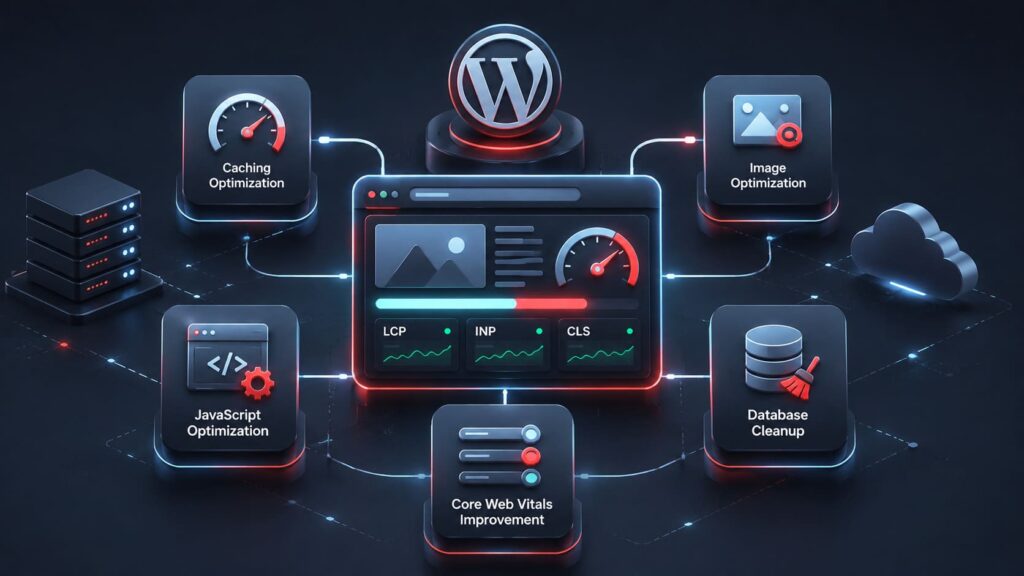
Top 5 WordPress performance plugins: how to improve Core Web Vitals
Looking for the best WordPress performance plugins? Compare the top solutions for caching, JavaScript optimization, image compression, and Core Web Vitals improvements to make your website faster.

My Honest Take on Elementor: Powerful Builder or Long-Term Trap?
Elementor is one of the most popular WordPress page builders, praised for its flexibility and visual editing. But behind the convenience lie several serious technical drawbacks. In this article, I share both the strengths and the hidden problems of Elementor, from database bloat to scalability and SEO challenges.

Rating Schema: Best Practices for SEO and Structured Data
Rating schema is one of the most valuable types of structured data for websites that collect reviews, ratings, and user feedback. By implementing Schema.org rating markup, website owners can help search engines better understand their content and provide additional context about products, books, software, courses, and other rated entities.

AI Development: Pros and Cons: Is AI Creating Better Developers or Making Them Dependent?
Artificial intelligence is transforming software development faster than any technology before it. As developers rely more on AI, they may gradually lose essential coding skills, become dependent on expensive AI tools, and face a changing job market where technical expertise alone is no longer enough.